Connecting a Charger
In general, you will need to follow these steps to add and connect a charger to CitrineOS:
- Add the Charging Station
- Add an EVSE to the Charging Station
- Add a Connector to the Charging Station
- Point the charger to CitrineOS
Create Charger via Operator UI#
1. Navigate to /locations and click the Add Location button on the top right:

2. Configure your location and save it.
3. Navigate to /charging-stations and click the Add Charging Station button on the top right:

4. Configure your charging station and save it. Ensure that the location is the one you configured in the previous steps,
and that the charger Name matches with your charger's identifier.
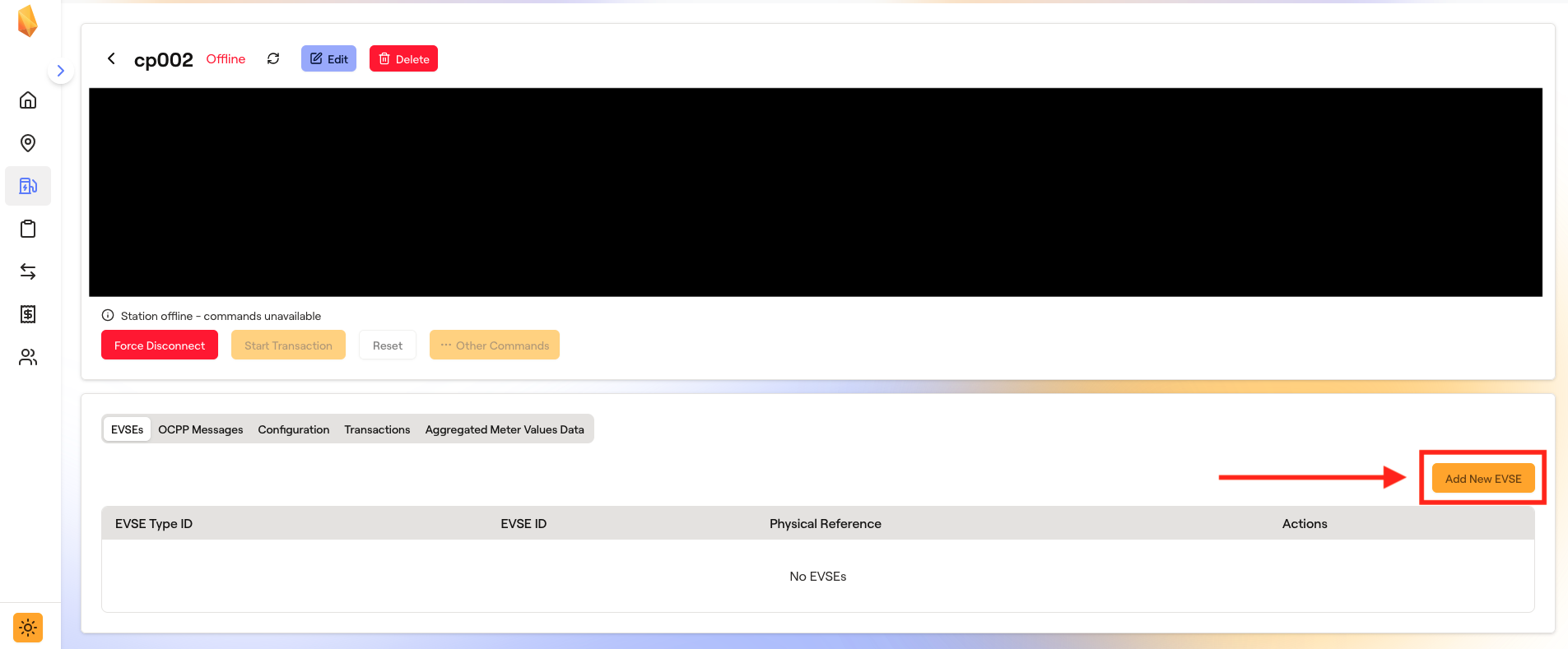
5. In your charger's details page, configure an EVSE by clicking the Add New EVSE button at the top right of the EVSEs tab:
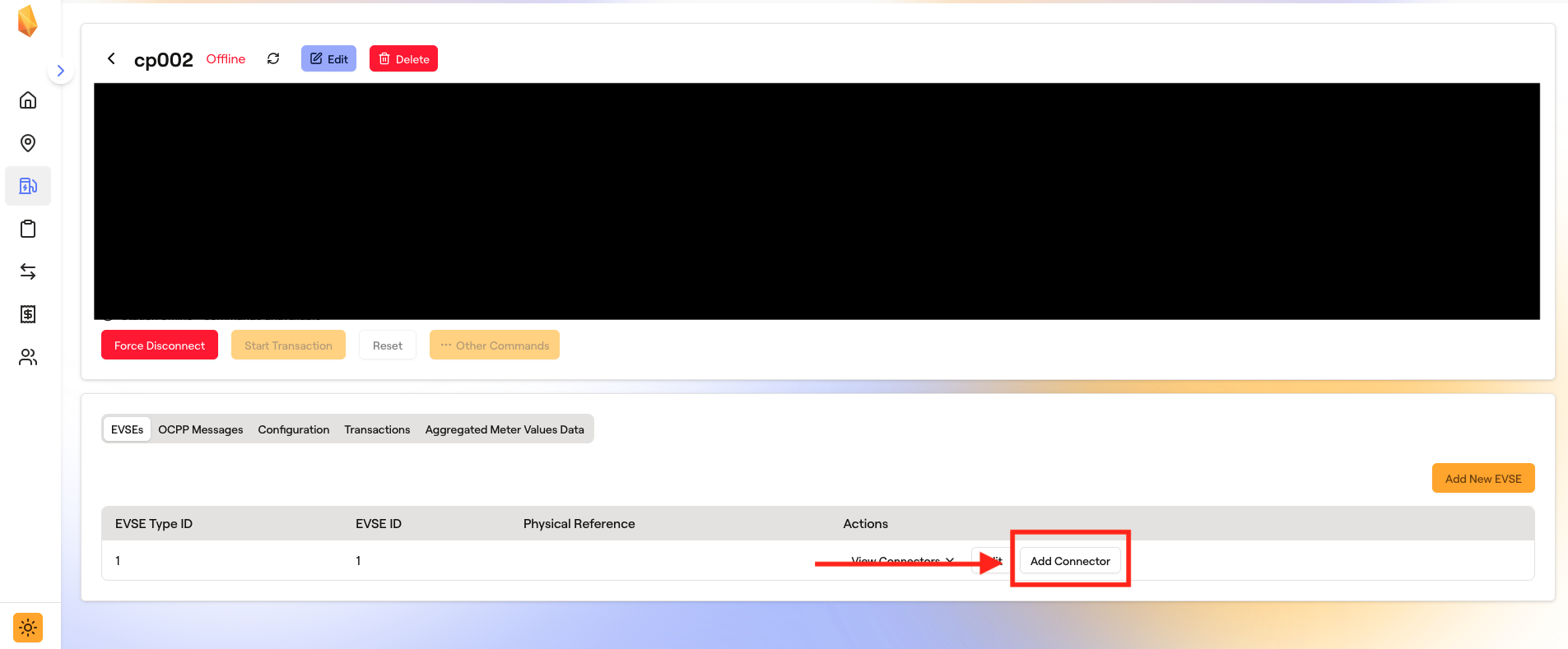
6. Once your EVSE is saved, configure a connector by clicking the Add Connector button in the EVSE row:
Create Charger via GraphQL#
From the Hasura GraphQL console, you can insert a new location with a new charging station, EVSE, and connector, using the following mutation:
mutation InsertLocation {
    insert_Locations_one(object: {
        address: "1 Main Street",
        city: "City",
        country: "United States of America",
        createdAt: "2026-01-01T00:00:00.000Z",
        name: "Location 1",
        postalCode: "12345",
        state: "State",
        timeZone: "America/New_York",
        updatedAt: "2026-01-01T00:00:00.000Z"
        ChargingStations: {
            data: {
                createdAt: "2026-01-01T00:00:00.000Z",
                ocppConnectionName: "cp001",
                updatedAt: "2026-01-01T00:00:00.000Z",
                Evses: {
                    data: {
                        createdAt: "2026-01-01T00:00:00.000Z",
                        evseTypeId: 1,
                        evseId: "cp001-01",
                        ocppConnectionName: "cp001",
                        updatedAt: "2026-01-01T00:00:00.000Z",
                        Connectors: {
                            data: {
                                connectorId: 1,
                                createdAt: "2026-01-01T00:00:00.000Z",
                                evseTypeConnectorId: 1,
                                format: "Socket", powerType: "DC",
                                ocppConnectionName: "cp001",
                                type: "IEC62196T1COMBO",
                                updatedAt: "2026-01-01T00:00:00.000Z"
                            }
                        },
                    }
                }
            }
        }
    }) {
        id
    }
}
Point Charger to CitrineOS#
Once CitrineOS is running and your charger is created, you can point the charger to ws://localhost:8081.
Depending on the charger you are using, you may need to append the station identifier (which should match with the "name"
of the charger) to the url, i.e. ws://localhost:8081/cp001. Some chargers take care of this automatically.
Boot in OCPP 2.0.1#
The Boot table can be used to review the most recent boot status and set a boot status for the next BootNotificationRequest
received from the charging station. After a successful boot, the status is set to Accepted. If you wish to fetch the device model
from the charger as part of the boot process described in the B02 use case of part 2 of the OCPP 2.0.1 protocol, set the status to Pending
and check the Get Base Report On Pending option. This will cause the next boot to be responded to with a BootNotificationResponse
that has status Pending, then CitrineOS will send a GetBaseReportRequest, triggering a series of NotifyReportRequest messages.
After the full report has been sent, the next attempted boot by the charger will be Accepted.
The Boot table has CRUD endpoints via REST API, of which the docs can be found here or running locally at http://localhost:8080/docs.
Here is an example request for charger cp001:
curl --location --request PUT 'http://localhost:8080/data/configuration/boot?ocppConnectionName=cp001&tenantId=1' \
    --header 'Content-Type: application/json' \
    --data '{ "status": "Pending" }'