Security Profiles
Before continuing, connect a charger.
Security Profile 1#
There are two layers of security available before the charger has the opportunity to send an OCPP message such as BootNotificationRequest. When the charger attempts to connect, it can be rejected at the transport layer if the websocket server is using security profiles 2 or 3. Otherwise, the http upgrade request occurs. The charger's upgrade request can be rejected if:
- The request's subprotocol header is incorrect. The default websocket servers used by CitrineOS accept only 'ocpp2.0.1'.
- The charging station's ID, as set in the url it connected with, is not known. This option can be toggled in the SystemConfig object used by CitrineOS, and is enabled by default only for the security profile 1 websocket server at
:8082. To enter a charger into CitrineOS, navigate to the Charging Station collection, then create and save a new entry for your charging station. Make sure the Id of your new entry is the charging station's station id as set in the url it uses to connect to CitrineOS. - The websocket server is using security profiles 1 or 2, and the request's Authorization header has an incorrect username or password. The username will be checked against the charging station's id as set in the url it connected with. The password will be checked against the device model associated with the station id. Specifically, it will be the
ActualVariable Attribute's value that belongs to theBasicAuthPasswordVariable on theSecurityCtrlrComponent. You can set this VariableAttribute on the CSMS side using the Variable Attribute CRUD endpoints on the Monitoring module. You can set this VariableAttribute on the Charging Station side using the SetVariables message, which can be sent from CitrineOS using the Monitoring module's message API.
Once a charger has a Charging Station entry and its password has been set, you can connect it to the security profile 1 websocket server at ws://localhost:8082.
For the steps below, we will use EVerest as the charger example.
1. Adding a password
If you want to add a password for security profile 1 and 2, send the following request to the CitrineOS API.
curl -L 'http://localhost:8080/ocpp/2.0.1/monitoring/setVariables?identifier=cp001&tenantId=1' \
    -H 'Content-Type: application/json' \
    -H 'Authorization: Bearer test' \
    -d '{"setVariableData":[{"attributeValue":<password, e.g.,"DEADBEEFDEADBEEF">,"attributeType":"Actual","component":{"name":"SecurityCtrlr"},"variable":{"name":"BasicAuthPassword"}}]}'
Please note that the password should be sent in plain text and should not be hashed.
2. Set variables for connection profiles and priority.
After sending the request, EVerest should have 2 connection configurations: one is 8081 without password, the other is 8082 with basic auth password. The priority is 8082, otherwise it falls back to 8081.
curl --location 'http://localhost:8080/ocpp/2.0.1/monitoring/setVariables?ocppConnectionName=cp001&tenantId=1' \
    --header 'Content-Type: application/json' \
    --header 'Authorization: Bearer test' \
    --data '{
        "setVariableData": [
            {
                "attributeValue": "2,1",
                "attributeType": "Actual",
                "component": {
                    "name": "OCPPCommCtrlr"
                },
                "variable": {
                    "name": "NetworkConfigurationPriority"
                }
            },
            {
                "attributeValue": "[{\"configurationSlot\":1,\"connectionData\":{\"messageTimeout\":30,\"ocppCsmsUrl\":\"ws://host.docker.internal:8081/cp001\",\"ocppInterface\":\"Wired0\",\"ocppTransport\":\"JSON\",\"ocppVersion\":\"OCPP20\",\"securityProfile\":1}},{\"configurationSlot\":2,\"connectionData\":{\"messageTimeout\":30,\"ocppCsmsUrl\":\"ws://host.docker.internal:8082/cp001\",\"ocppInterface\":\"Wired0\",\"ocppTransport\":\"JSON\",\"ocppVersion\":\"OCPP20\",\"securityProfile\":1}}]",
                "attributeType": "Actual",
                "component": {
                    "name": "InternalCtrlr"
                },
                "variable": {
                    "name": "NetworkConnectionProfiles"
                }
            }
        ]
    }'
3. Restart everest-manager to pick up the new configs.
Inside citrine-core root folder
docker restart everest-manager-1
It will try to connect to CitrineOS using Security Profile 1 on 8082. Check for the following logs to confirm that this is the case:
# These are the EVerest logs
2026-07-30 18:40:12.789551 [INFO] ocpp:OCPP201     :: Open websocket with NetworkConfigurationPriority: 1 which is configurationSlot 2
2026-07-30 18:40:12.803274 [INFO] ocpp:OCPP201     :: Starting connection attempts to uri: ws://host.docker.internal:8082/cp001 with security-profile 1
2026-07-30 18:40:12.807740 [INFO] ocpp:OCPP201     :: Init client loop with ID: 2aab189ec6c0
2026-07-30 18:40:13.232684 [INFO] ocpp:OCPP201     :: LWS connect with info port: [8082] address: [host.docker.internal] path: [/cp001] protocol: [ocpp2.1, ocpp2.0.1] security profile: [1]
2026-07-30 18:40:13.516968 [INFO] ocpp:OCPP201     :: OCPP client successfully connected to server with version: ocpp2.0.1
2026-07-30 18:40:13.527976 [INFO] api:API          :: Received OCPP connection status callback with is_connected: true
Security Profile 2#
Ensure that CitrineOS is running and your charger is currently connected to Citrine using Security Profile 1.
1. Generate the CSMS certificate chain with the following cURL.
serverId identifies which websocket server
config (its id in config.json). Passing it more than once (e.g.
serverId=2&serverId=3) regenerates the same chain for multiple servers at once. This is recommended if you plan to test security profile 3 as well:
curl --location 'http://localhost:8080/ocpprouter/certificateChain?tenant=1&serverId=2&serverId=3' \
    --header 'Authorization: Bearer <your token, can be dummy if local>' \
    --header 'Content-Type: application/json' \
    --data '{
        "organizationName": "<your organizationName, i.e. test>",
        "commonName": "<your commonName, i.e. host.docker.internal>",
        "countryName": "US",
        "signatureAlgorithm": "SHA256withECDSA",
        "selfSigned": true,
        "validBefore": "2056-01-01T00:00:00.000Z",
        "generationScope": "FullChain",
        "signWithPreviousRoot": false
}'
Keep the response since it is needed in the following step.
2. Restart CitrineOS to pick up the new configs.
3. Install the CSMS Root Certificate on EVerest via the Operator UI:
- Go to the Charging Station's details page and click
Other Commands: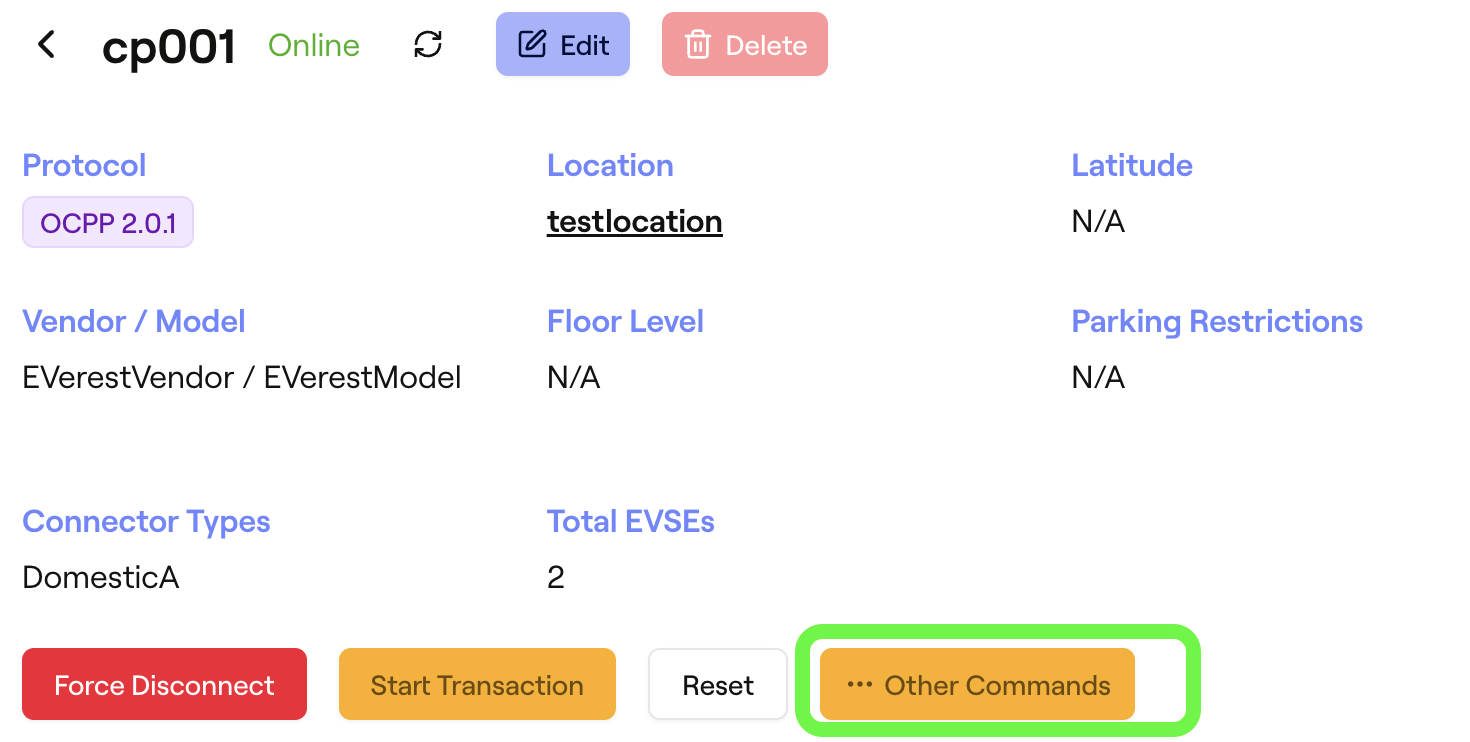
- Select
Install Certificate.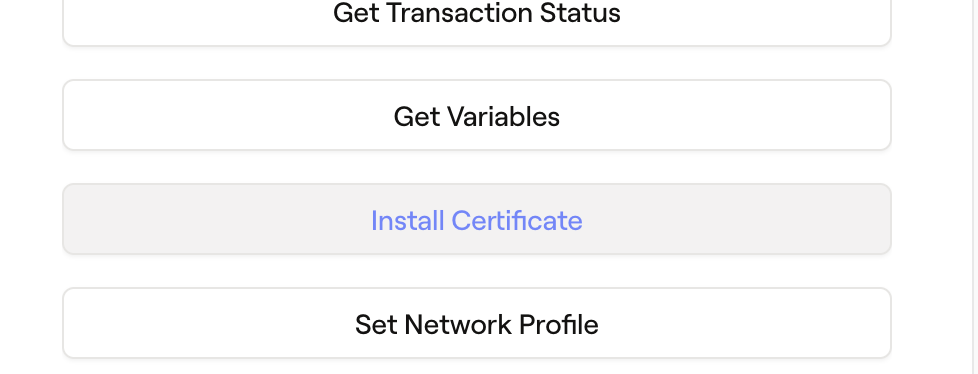
- Submit the root certificate PEM generated by the endpoint in step 1. If running via Docker, it is stored in the
datafolder. The file name can be found in the response in step 1 with pattern, Root_Certificate_XXXXXXXX.pem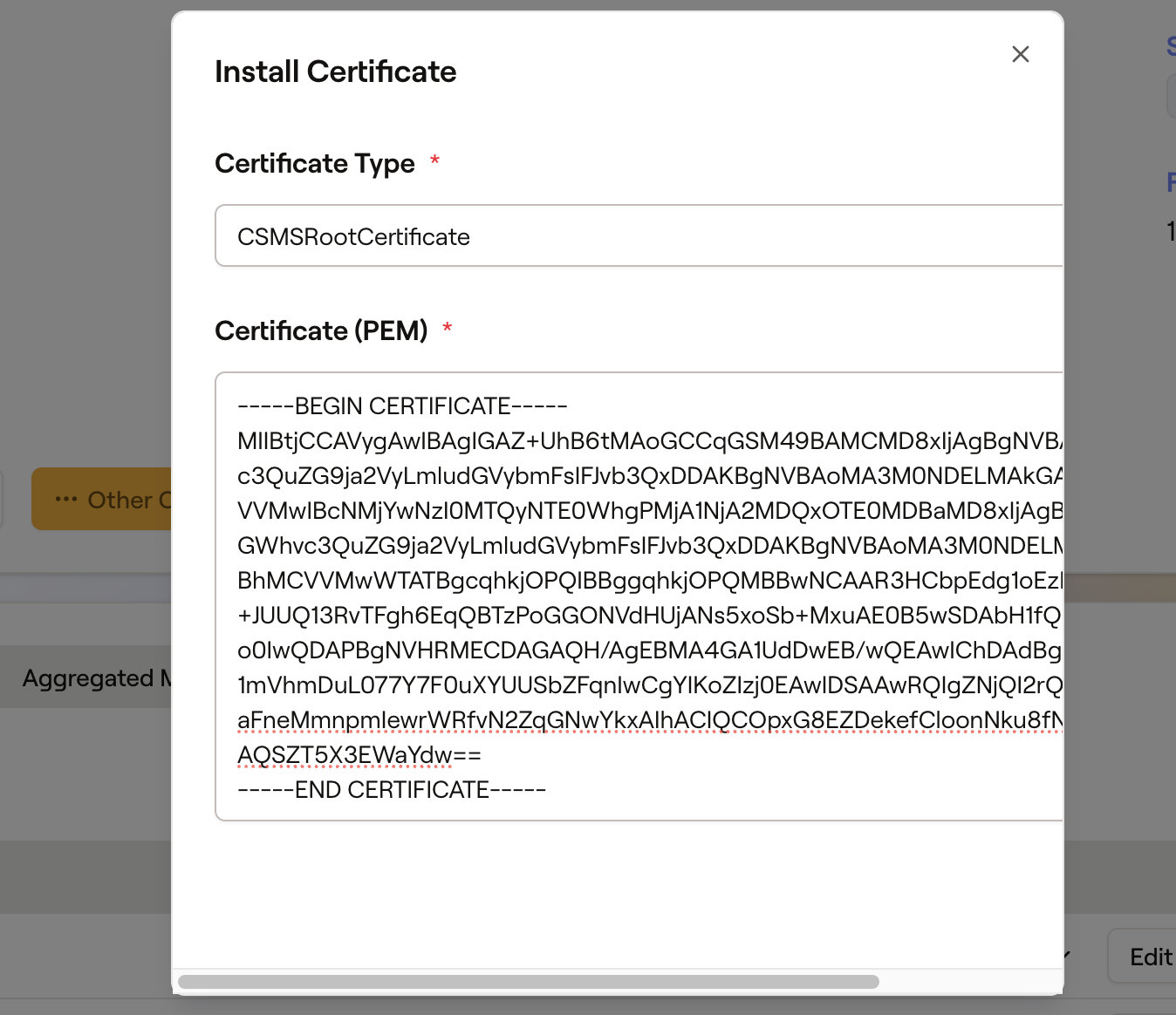
4. The password should have been set at step 1 in Security Profile 1
5. Set variables for connection profiles with security profile 2, same as step 2 in Security Profile 1.
Update configurationSlot: 2. Set its securityProfile to 2 and point ocppCsmsUrl at your security
profile 3 server's port (e.g. wss://host.docker.internal:8443/cp001).
curl --location 'http://localhost:8080/ocpp/2.0.1/monitoring/setVariables?ocppConnectionName=cp001&tenantId=1' \
    --header 'Content-Type: application/json' \
    --header 'Authorization: Bearer test' \
    --data '{
        "setVariableData": [
            {
                "attributeValue": "2,1",
                "attributeType": "Actual",
                "component": {
                    "name": "OCPPCommCtrlr"
                },
                "variable": {
                    "name": "NetworkConfigurationPriority"
                }
            },
            {
                "attributeValue": "[{\"configurationSlot\":1,\"connectionData\":{\"messageTimeout\":30,\"ocppCsmsUrl\":\"ws://host.docker.internal:8081/cp001\",\"ocppInterface\":\"Wired0\",\"ocppTransport\":\"JSON\",\"ocppVersion\":\"OCPP20\",\"securityProfile\":1}},{\"configurationSlot\":2,\"connectionData\":{\"messageTimeout\":30,\"ocppCsmsUrl\":\"wss://host.docker.internal:8443/cp001\",\"ocppInterface\":\"Wired0\",\"ocppTransport\":\"JSON\",\"ocppVersion\":\"OCPP20\",\"securityProfile\":2}}]",
                "attributeType": "Actual",
                "component": {
                    "name": "InternalCtrlr"
                },
                "variable": {
                    "name": "NetworkConnectionProfiles"
                }
            }
        ]
    }'
After sending the request, EVerest should have 2 connection configurations: 8081 and new 8443 for profile 2. The priority is 8443, otherwise it falls back to 8081.
6. Restart everest-manager.
Inside citrine-core root folder
docker restart everest-manager-1
It will try to connect to CitrineOS using Security Profile 2 on 8443. Check for the following logs to confirm that this is the case:
# These are the EVerest logs
2026-07-30 20:50:36.433999 [INFO] evse_security:E  :: Requesting certificate location: [CSMS] location:"/ext/dist/etc/everest/certs/ca/csms/CSMS_ROOT_CA.pem"
2026-07-30 20:50:36.437847 [INFO] ocpp:OCPP201     :: Loading CA csms bundle to verify server certificate: /ext/dist/etc/everest/certs/ca/csms/CSMS_ROOT_CA.pem
2026-07-30 20:50:36.839422 [INFO] ocpp:OCPP201     :: LWS connect with info port: [8443] address: [host.docker.internal] path: [/cp001] protocol: [ocpp2.1, ocpp2.0.1] security profile: [2]
2026-07-30 20:50:37.159290 [INFO] ocpp:OCPP201     :: OCPP client successfully connected to server with version: ocpp2.0.1
Security Profile 3#
Security Profile 3 adds mutual TLS (mTLS) on top of Security Profile 2: the charging station authenticates with its own client certificate instead of a username/password. Ensure that CitrineOS is running and your charger is currently connected to Citrine using Security Profile 2 following along with Security Profile 2 above.
1. Generate or reuse the CSMS certificate chain.
If in step 1 in Security Profile 2, you have sent the request with serverId=2&serverId=3,
then this step, step 2 and step 3 can be skipped. Otherwise, you need to follow either option 1 or option 2 below.
- To generate new different certificate chain, do the same as step 1 in Security Profile 2, but
set
serverIdto your security profile 3 websocket server'sid(the config entry withsecurityProfile: 3, e.g.serverId=3). - To reuse the existing certificate chain for server 2, Update your
config.json(If via docker, it is stored in data folder by default.) with thetlsKeyFilePath,tlsCertificateChainFilePath,mtlsCertificateAuthorityKeyFilePath, androotCACertificateFilePathfrom the response in Security Profile 2, step 1 above.
2. Restart CitrineOS to pick up the new configs.
3. Install the CSMS Root Certificate on EVerest — identical to step 3 in Security Profile 2.
4. Add needed variables for everest to generate CSR:
curl --location 'http://localhost:8080/ocpp/2.0.1/monitoring/setVariables?identifier=cp001&tenantId=1' \
    --header 'Content-Type: application/json' \
    --data '{
        "setVariableData": [
            {
                "attributeValue": "US",
                "attributeType": "Actual",
                "component": {
                    "name": "ISO15118Ctrlr"
                },
                "variable": {
                    "name": "CountryName"
                }
            },
            {
                "attributeValue": "Pionix",
                "attributeType": "Actual",
                "component": {
                    "name": "ISO15118Ctrlr"
                },
                "variable": {
                    "name": "OrganizationName"
                }
            }
        ]
    }'
5. Equip the charging station with a certificate signed by CitrineOS, so it has a client certificate to present
when connecting with Security Profile 3. Trigger the charger to request one with a SignChargingStationCertificate
trigger message:
curl --location 'http://localhost:8080/ocpp/2.0.1/configuration/triggerMessage?identifier=cp001&tenantId=1' \
    --header 'Content-Type: application/json' \
    --data '{
        "requestedMessage": "SignChargingStationCertificate"
}'
This causes the charging station to send a SignCertificateRequest with its CSR over the current (Security
Profile 2) connection; CitrineOS signs it using the sub CA generated in step 1 and returns it via
CertificateSigned, so the charger now holds a client certificate it can use to connect with Security Profile 3.
6. Set variables for connection profiles, update and send the same request as step 5 in Security Profile 2.
Update configurationSlot: 2 in request body. Set its securityProfile to 3 and point ocppCsmsUrl at your security
profile 3 server's port (e.g. wss://host.docker.internal:8444/cp001).
7. Restart EVerest, same as step 6 in Security Profile 2, but check the logs for a connection using Security Profile 3.
# These are the EVerest logs
2026-07-30 21:17:03.916862 [INFO] evse_security:E  :: Requesting certificate location: [CSMS] location:"/ext/dist/etc/everest/certs/ca/csms/CSMS_ROOT_CA.pem"
2026-07-30 21:17:03.937165 [INFO] ocpp:OCPP201     :: Loading CA csms bundle to verify server certificate: /ext/dist/etc/everest/certs/ca/csms/CSMS_ROOT_CA.pem
2026-07-30 21:17:04.310938 [INFO] ocpp:OCPP201     :: LWS connect with info port: [8444] address: [host.docker.internal] path: [/cp001] protocol: [ocpp2.1, ocpp2.0.1] security profile: [3]
2026-07-30 21:17:04.628483 [INFO] ocpp:OCPP201     :: OCPP client successfully connected to server with version: ocpp2.0.1